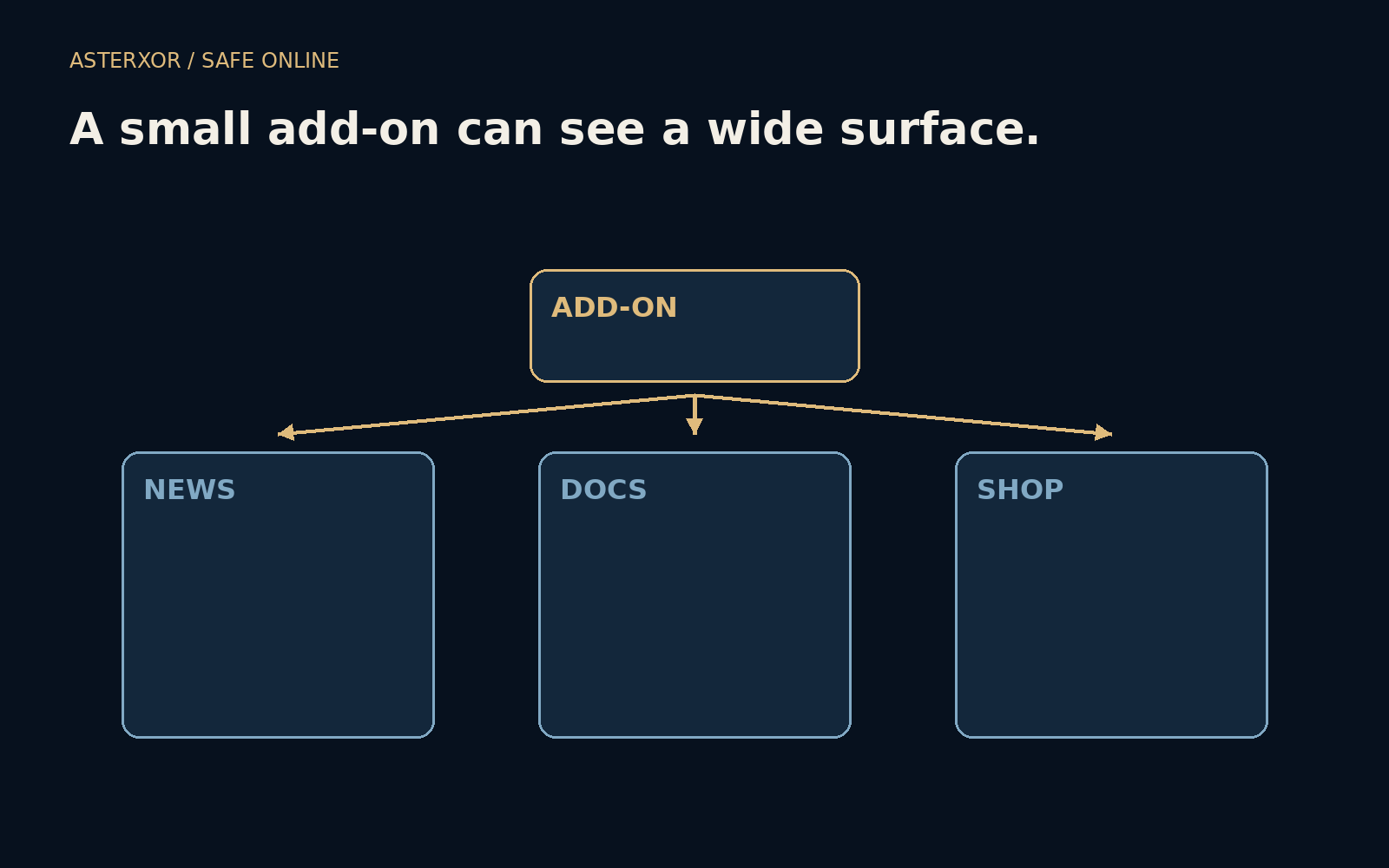
How much of your browsing does this small convenience need to see?
A browser extension can make an ordinary task easier: adjusting a page, helping with writing or saving useful information. Its work may require access to page content or browser features. The visible icon can be tiny while the granted scope is broad. Reviewing an extension as software, rather than as a harmless decoration, makes that difference easier to notice.
Judge the reach of the permission, not the size of the icon.
A feature and a scope are separate choices
Imagine a fictional reading helper used only on one news site. It might request access to that site, or it might ask for access across every site in the browser. The broader request can cover pages unrelated to the feature you currently need. Whether it can actually read or modify particular content depends on the browser’s permission model and the extension’s implementation.
A broad grant is a capability, not proof that information was collected or sent away. Conversely, an appealing feature does not explain every capability automatically. Read the permission prompt and the extension’s stated purpose together. If the scope is wider than expected, look for a clear explanation and for narrower options supported by that browser.
Three fictional pages show the difference
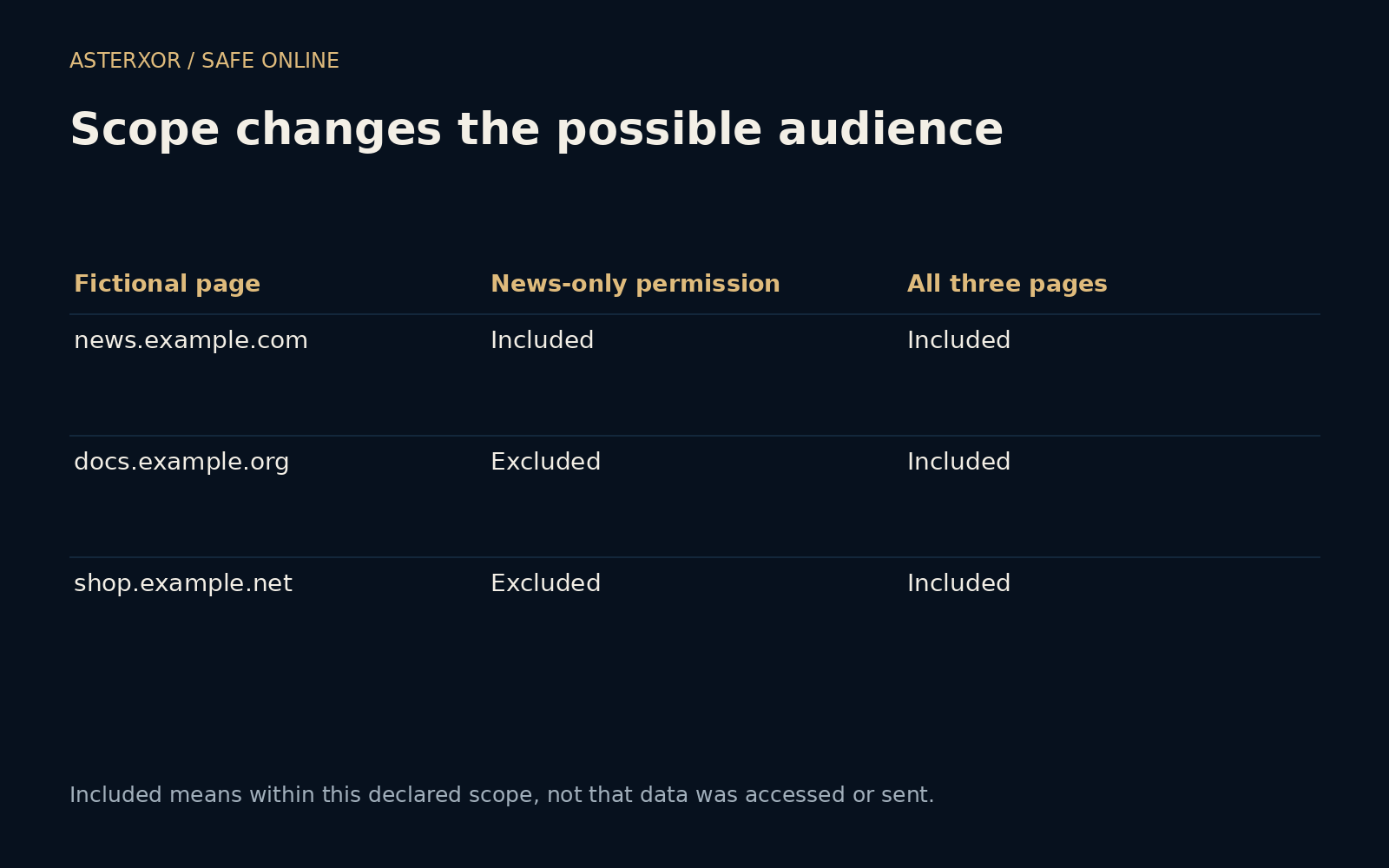
Our offline set comparison uses news.example.com, docs.example.org and shop.example.net. A declared news-only scope includes the first page and excludes the other two. A second declared scope includes all three. Four assertions confirm the counts, the subset relationship and the exclusion of the document page from the narrow set. No actual extension is installed or examined.
These simple sets are not an implementation of browser match patterns. Real patterns can depend on schemes, hosts and paths, and special pages may have additional restrictions. The illustration asks only how a larger scope expands the set of potentially relevant pages. It does not claim that a permission grants unrestricted access to every browser surface or every piece of device data.
Page access can matter even without a download
A page may contain information you are reading, writing or submitting. An extension permitted to interact with that page can become relevant to the privacy of that activity. Browser capabilities differ: reading page content, accessing browsing history and using a particular API are not all the same permission. Review the actual grants rather than reducing them to one vague access label.
Some browsers let you restrict site access, require a click before activation or adjust whether an extension runs in private browsing. These controls can help align access with use, but their availability and effect vary. Do not assume private mode disables every extension or that a restricted host grant explains every other permission the extension holds.
The decision continues after installation
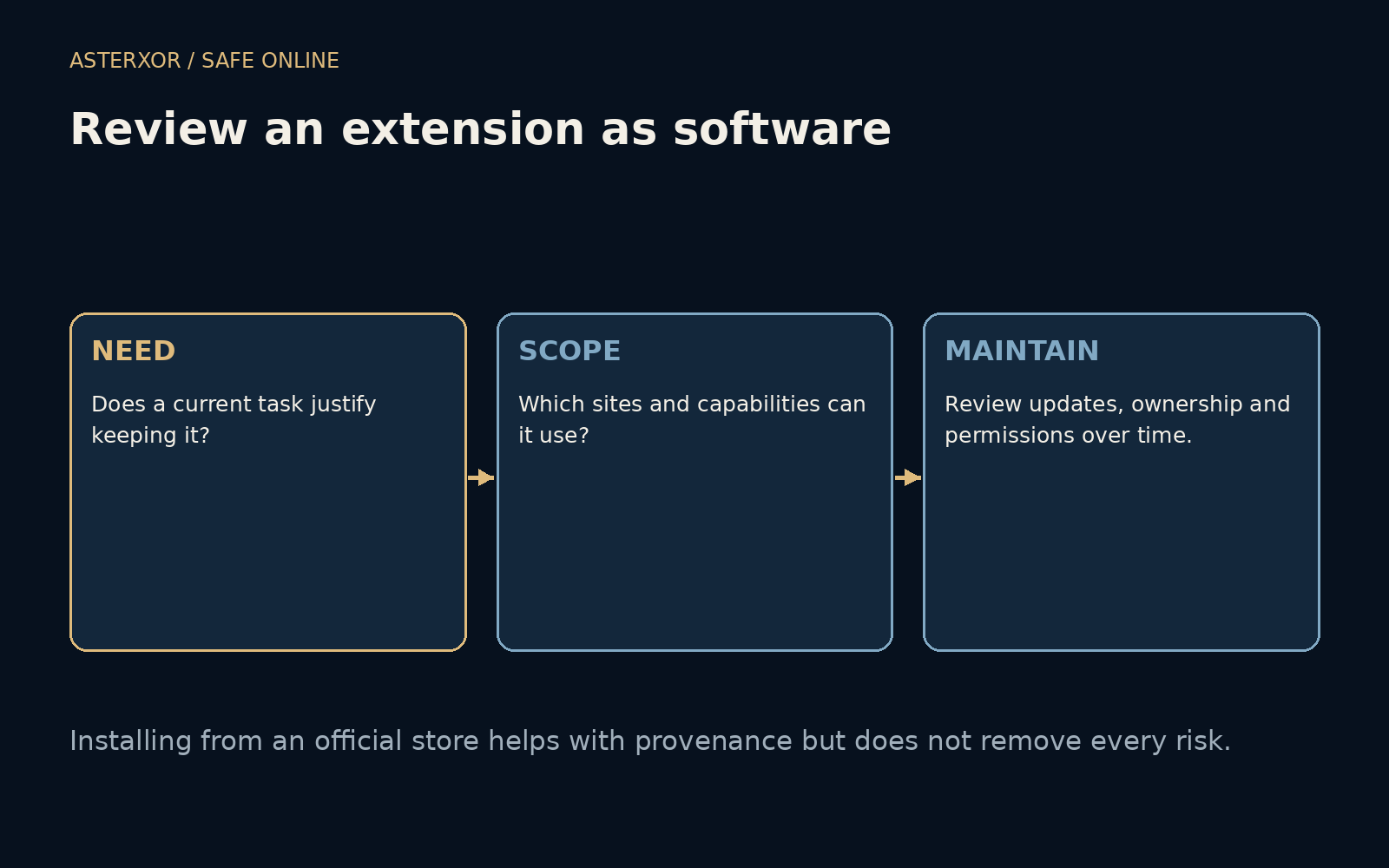
An extension can change through updates, new features or ownership changes. A tool that once fit your needs may later request broader access. Keep software updated, but read material permission changes and consider whether the current purpose still justifies them. Installing through an official store can help establish provenance; it does not replace judgment about every future behavior.
Periodically review what remains installed. Disable or remove tools you no longer need through the browser’s normal controls, and test that important workflows still work. Removing an extension limits its future activity in that browser; it does not automatically retrieve information already transmitted, remove an associated online account or undo every change made elsewhere.
Choose a smaller tool when it does the same useful job
For an occasional task, a built-in browser feature or a workflow that handles one selected item may be sufficient. That is not a rule that extensions are bad. It is a way to compare the convenience you gain with the ongoing access you grant. A well-chosen extension can be valuable when its role and maintenance are understood.
On a managed browser, follow the organization’s extension policy and ask the responsible team when a needed tool is blocked. Do not bypass controls by installing an unreviewed copy from an unfamiliar source. For a personal browser, begin with one question about each add-on: what current task would I miss if it were gone? The answer makes the next permission review more concrete.
Further reading
Chrome: Declare permissions ↗Mozilla: Host permissions ↗Google Chrome Help: Install and manage extensions ↗Original documentation and useful background.